Wireless Handheld Setup
| Document Version | v.2 |
|---|---|
| Document Last Updated | 10/24/24 |
| Software Version Documented | v.10 |
Overview
The document will go over how to set up your wireless handheld device for Wireless Warehouse Mgmt.
HandHeld Recommendations
Savance Enterprise recommends the following Wireless Barcode Handheld.

Vanquisher Android 11 Rugged Handheld PDA 1D & 2D Barcode Scanner Full Touch Screen 5.7" WiFi & 4G LTE, for Warehouse Inventory & Assets Tracking.
These can be found on Amazon
Device Setup
To begin make sure your handheld(s) are fully charged and connected to your wifi.
Display Size
Before you download the applications you will first need to resize your display on the handheld device.
-
Swipe down on the device to get to ‘Settings’ by select the gear icon.

-
Next, select ‘Display’ from the list of settings

-
Select ‘Advanced’ from the Display settings list.

-
Look for ‘Display Size’, which is set to ‘default’ by default, and select it.

-
Using the slider, move all the way to the left or when it displays ‘Small’


-
Exit out of the Display Size window and your settings will appear.

Installing Savance Enterprise App
Your Implementation Specialist will provide your specific Wireless Warehouse URL for your Savance application.
-
While on the device you will open Chrome and type the URL

-
Once the URL is loaded you will get the following below ‘Add Savance Enterprise to Home Screen’

-
Select that and a message pop will appear to Install App, and select ‘Install’
-
The Savance application will automatically be installed and the Icon will appear.

-
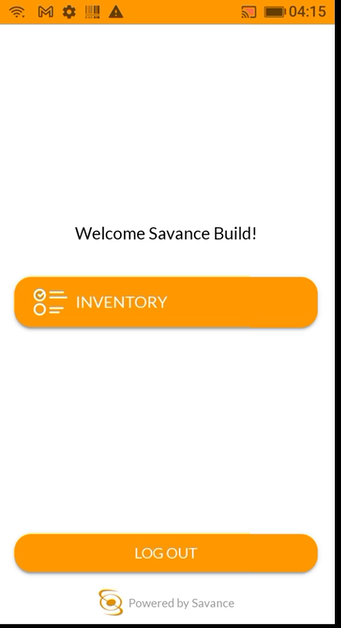
Select the Icon and now you can log in to the Wireless Handheld App.

-
Log in using your Savance application credentials